Product Guide
DJI Osmo 360 guide
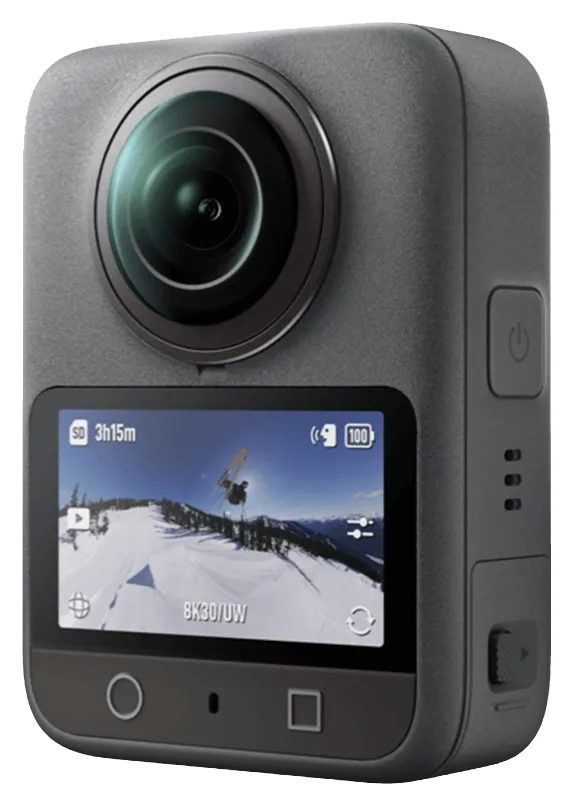
360° camera that records 8K panoramic video and 120 MP panoramic photos. You can reframe the shot after recording, and the selfie stick disappears from 360° footage.
Great for: Travel and adventure footage · Capture everything now, frame it later · Third-person shots with an invisible selfie stick
Overview
The Osmo 360 records in all directions at once with two lenses. In panoramic mode you choose the angle afterwards in DJI Mimo or on a computer, and a selfie stick held in line with the camera is hidden from the final 360° image.[1]
It has 128 GB of built-in storage (about 105 GB usable) and also accepts a microSD card. The camera is waterproof to 10 m, but DJI does not recommend it alone for underwater shooting because panoramas can stitch incorrectly underwater.[1]
Key features
-
8K panoramic video
360° video at up to 7680×3840 (8K) at up to 50 fps, 6K at up to 60 fps, or 4K at 100 fps.[2]
-
120 MP panoramic photos
360° photos at 15520×7760, or 30.72 MP photos with a single lens.[2]
-
Single-lens mode
Use it like a regular action camera with one lens, at up to 5K 60 fps.[2]
-
Invisible selfie stick
In 360° mode, a selfie stick screwed into the bottom mount is invisible in the frame.[1]
-
128 GB built in
Built-in storage (about 105 GB usable) plus microSD support up to 1 TB.[2]
-
Waterproof to 10 m
The camera body is rated IP68 and waterproof to 10 m without a case.[2]
Specifications
Values are the manufacturer's published figures. Battery times are measured by the manufacturer in lab conditions and will be shorter in real use.
| Sensor | 1/1.1-inch CMOS[2] |
|---|---|
| Aperture | f/1.9[2] |
| Panoramic video | 8K (7680×3840) at 24/25/30/48/50 fps; 6K (6000×3000) up to 60 fps; 4K (3840×1920) at 100 fps[2] |
| Single-lens video | Up to 5K at 25/30/50/60 fps[2] |
| Panoramic photo | 120 MP (15520×7760)[2] |
| Single-lens photo | 30.72 MP (6400×4800)[2] |
| Screen | 2.0-inch touchscreen[2] |
| Waterproof | 10 m, IP68 (camera body only)[2] |
|---|---|
| Battery | 1950 mAh; up to 100 min at 8K/30fps (120 min with Endurance mode), or up to 190 min at 6K/24fps with Endurance mode (manufacturer lab tests)[2] |
| Operating temperature | -20 °C to 45 °C[2] |
| Storage | 128 GB built in (105 GB available); microSD up to 1 TB[2] |
| Wireless | Wi-Fi 6; Bluetooth BLE 5.1[2] |
Getting started
-
Insert the battery
Insert the battery and close the cover completely. When the cover is fastened properly, the red marks are no longer visible.[1]
-
Charge
DJI recommends a USB-C charger that supports PD (Power Delivery) or PPS.[1]
-
Power on
Press and hold the Power/Quick Switch button.[1]
-
Connect to DJI Mimo
DJI requires activation in DJI Mimo before first use. Scan the QR code on the camera screen to get the app, turn on Wi-Fi and Bluetooth, open DJI Mimo, tap the camera icon and follow the steps.[1]
-
Update the firmware if prompted
When DJI Mimo shows a firmware prompt, tap it and follow the on-screen steps.[1]
Before shooting anything important, record a short test clip to confirm everything works.
How-to tutorials
Buttons at a glance
- Power/Quick Switch: press and hold to power on or off. In the live view, press once to open Quick Switch, then press again to cycle through preset shooting modes.
- Shutter/Record: press once to take a photo or start and stop recording. With the camera off, press once to power on and start recording straight away (SnapShot).
- Function button: press once to switch between the front and rear view (panoramic mode) or lenses (single-lens mode). Press twice to recenter the view in panoramic mode.
Source: [1] DJI Osmo 360 User Manual
Get the invisible selfie stick effect
- Screw the selfie stick into the threaded hole on the bottom of the camera, or attach it with the Adapter Mount.
- Shoot in 360° (panoramic) mode. The selfie stick is invisible in the frame.
- In single-lens mode the stick stays in the frame.
- In 360° Selfie Mode the camera records only the area on the selfie stick side. Use DJI's editing software to create wide-angle videos with the stick hidden.
Source: [1] DJI Osmo 360 User Manual
Copy footage to your phone or computer
- Phone: turn on Wi-Fi and Bluetooth, open DJI Mimo, tap the camera icon, then open Playback and download your clips.
- Computer: power on the camera, connect the included cable and tap Transfer File: USB. The camera cannot record while transferring.
- If a transfer is interrupted, reconnect the camera and try again.
Source: [1] DJI Osmo 360 User Manual
Edit 360° footage before sharing
- Panoramic videos must be edited (reframed) before you can share them as normal videos.
- Use DJI Mimo on your phone for quick edits, or desktop software for advanced editing.
- DJI's official tutorial videos walk through both workflows (see Video tutorials below).
Source: [1] DJI Osmo 360 User Manual
Video tutorials
Official tutorial videos published by the manufacturer. Videos open on the manufacturer's video site.
Manuals & downloads
Documents are hosted by the manufacturer and open in a new tab. Always use the latest version.
Troubleshooting
The camera will not connect to DJI Mimo
- Make sure Wi-Fi and Bluetooth are both turned on on your phone.
- Update DJI Mimo to the latest version.
- On the camera, swipe down from the top of the live view and choose Wireless Connection > Reset Connection. This resets all connections and Wi-Fi passwords.
Source: [1] DJI Osmo 360 User Manual
A firmware update fails
- Restart the camera and DJI Mimo.
- Turn on Wi-Fi and Bluetooth on your phone.
- Reconnect the camera to DJI Mimo and try the update again. If it fails again, contact DJI Support.
Source: [1] DJI Osmo 360 User Manual
Underwater panoramas look misaligned
- Water bends light differently from air, so the camera can stitch panoramic images incorrectly underwater.
- DJI does not recommend using the camera alone for underwater shooting.
Source: [1] DJI Osmo 360 User Manual
A file transfer to the computer stopped
- Reconnect the camera to the computer and tap Transfer File: USB again.
Source: [1] DJI Osmo 360 User Manual
Still stuck with a rented unit? Contact JuanderGear.
Care & safe use
Lens[1]
- Keep the lens surfaces clean and free of scratches; marks affect image quality.
- After shooting, fit the rubber lens protector and keep its inside clean.
Water use[1]
- Make sure the battery and its compartment are clean and dry, and the cover is fully fastened, before going near water.
- Avoid jumping into water at high speed with the camera.
- Rinse with tap water afterwards and let it dry naturally. Never use a hair dryer.
- To change the battery after water use, open the cover facing downward and wipe away water and debris from the gaps and the red waterproof seal.
Cleaning and battery[1]
- Do not use alcohol or cleaning solutions on the camera.
- Clean the lens with a lens pen, air blower or lens cloth.
- Use only official batteries.
- If the battery will not be used for 10 days or more, discharge it to 40–65% to extend its life.
FAQ
Can I take the Osmo 360 underwater?
The camera body is waterproof to 10 m (IP68), but DJI does not recommend using it alone for underwater shooting, because panoramic footage may stitch incorrectly underwater.[1]
Do I need a memory card?
Not necessarily. It has 128 GB of built-in storage (about 105 GB usable), and you can add a microSD card of up to 1 TB.[2]
Why can't I post a 360° video straight away?
Panoramic videos need to be edited (reframed) before sharing as regular videos. Use DJI Mimo on your phone or desktop editing software.[1]
Sources
- DJI Osmo 360 User Manual (opens in a new tab) — DJI. Checked October 23, 2026.
- Osmo 360 specifications (opens in a new tab) — DJI. Checked October 23, 2026.
Product names, logos and trademarks belong to their respective owners. JuanderGear is an independent rental service and is not affiliated with or endorsed by DJI, JBL/HARMAN or Microsoft. Guide content is summarised from the manufacturers' public documents; if anything here differs from the official manual, the manual takes precedence.
More product guides
-
 Cameras
DJI Osmo Action 4
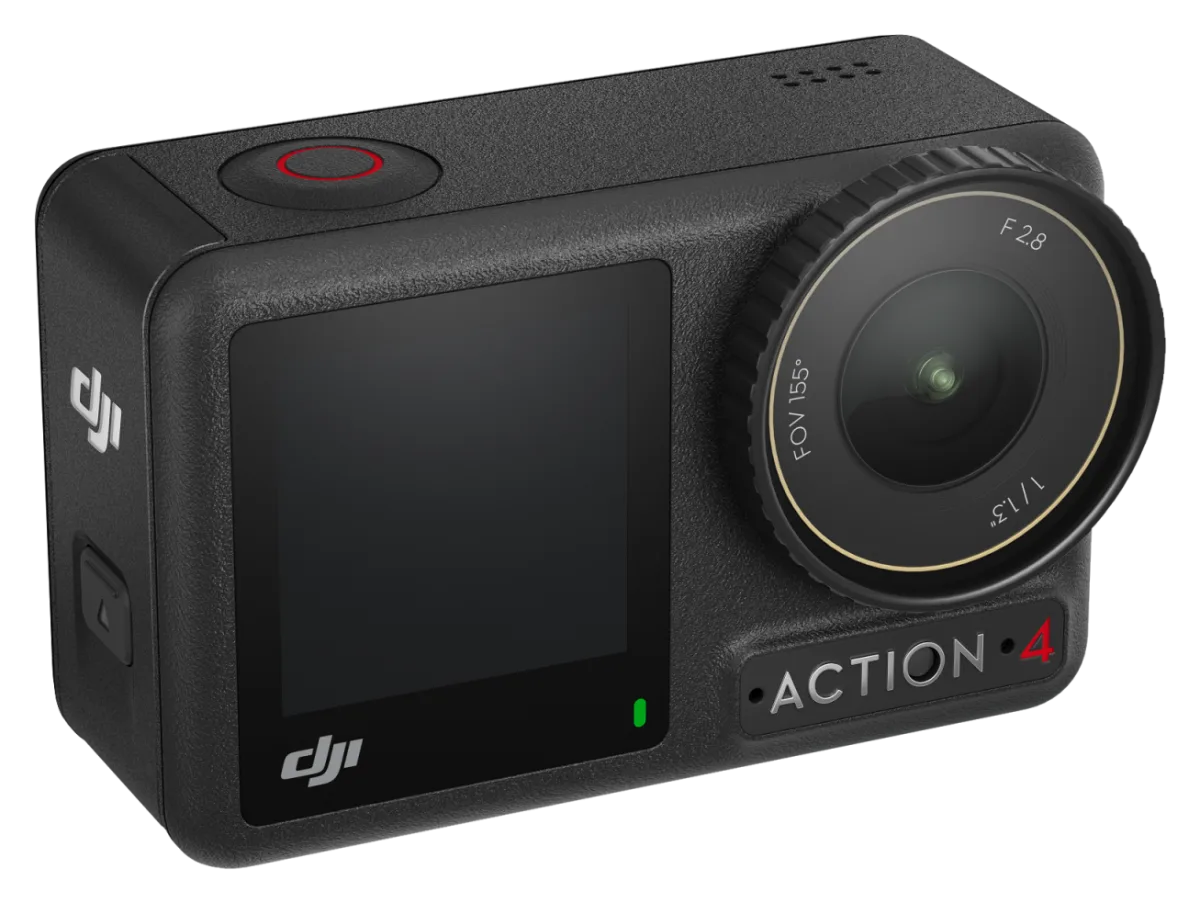
Rugged action camera with a 1/1.3-inch sensor, 4K video at up to 120 fps, two touchscreens and waterproofing to 18 m without a case.
-
 Cameras
DJI Osmo Nano
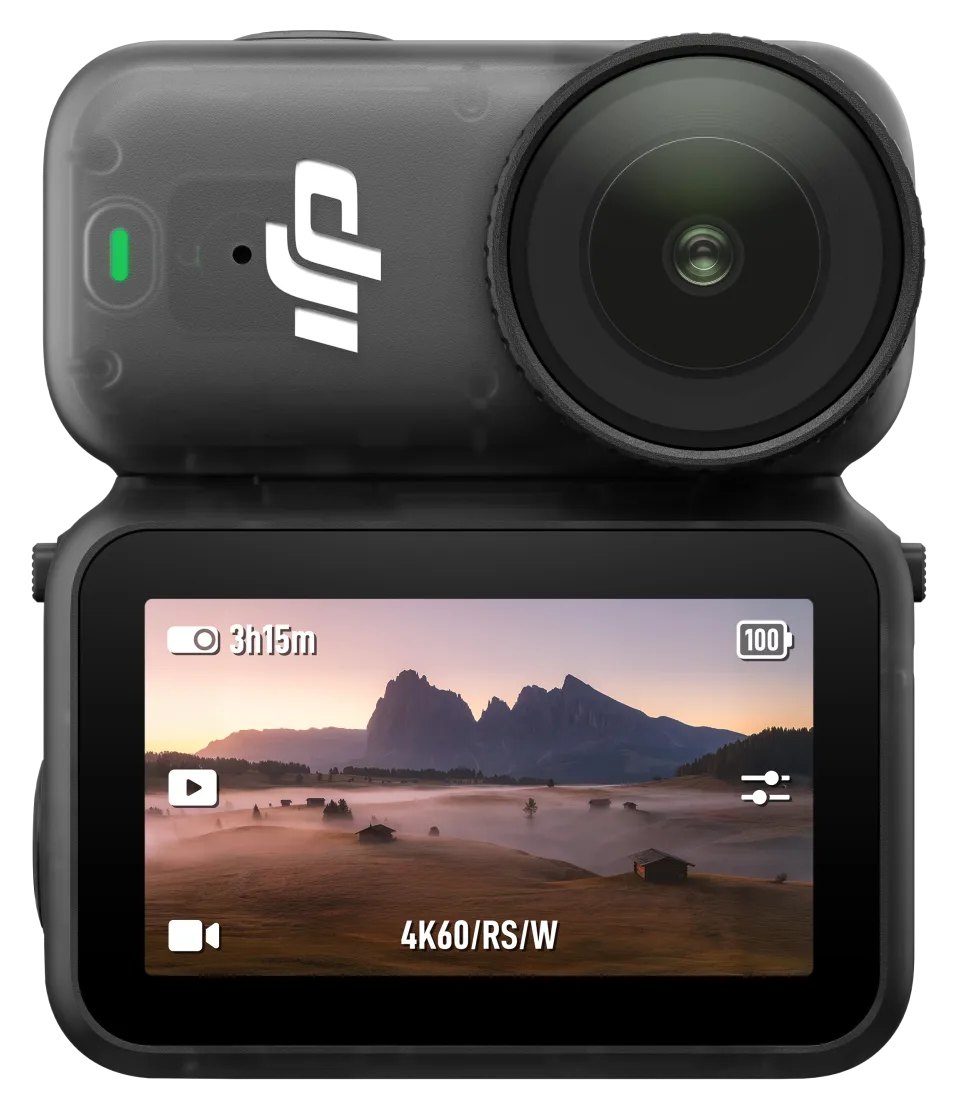
Tiny 52 g magnetic camera that records 4K at 60 fps. Wear it, clip it or mount it, and pair it with its Vision Dock for a screen and longer battery life.
-
 Cameras
DJI Osmo Pocket 3
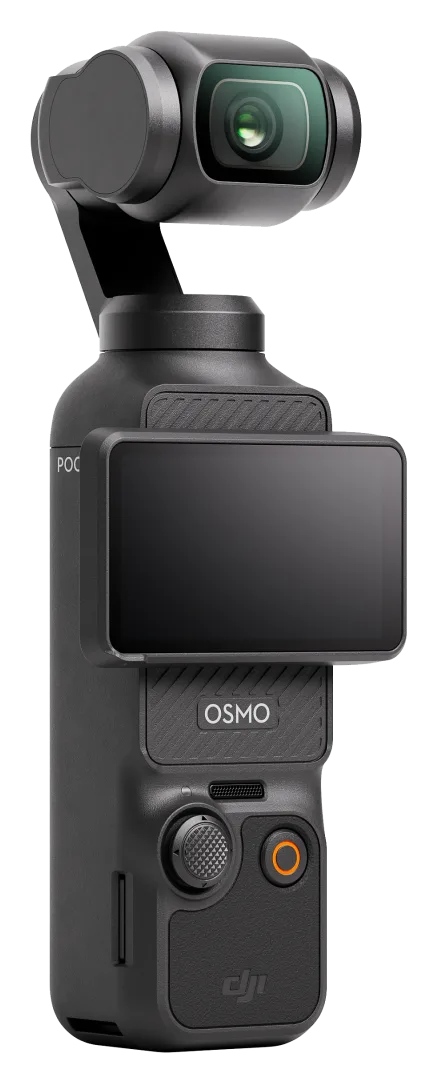
Pocket-sized 3-axis gimbal camera with a 1-inch sensor, 4K video and a 2-inch rotating touchscreen. Made for vlogging and travel.
Need help with your rental?
If something is not working as described, or a guide does not cover your question, message the JuanderGear team. For warranty and repairs of devices you own, contact the manufacturer directly.