Product Guide
DJI Osmo Pocket 3 guide
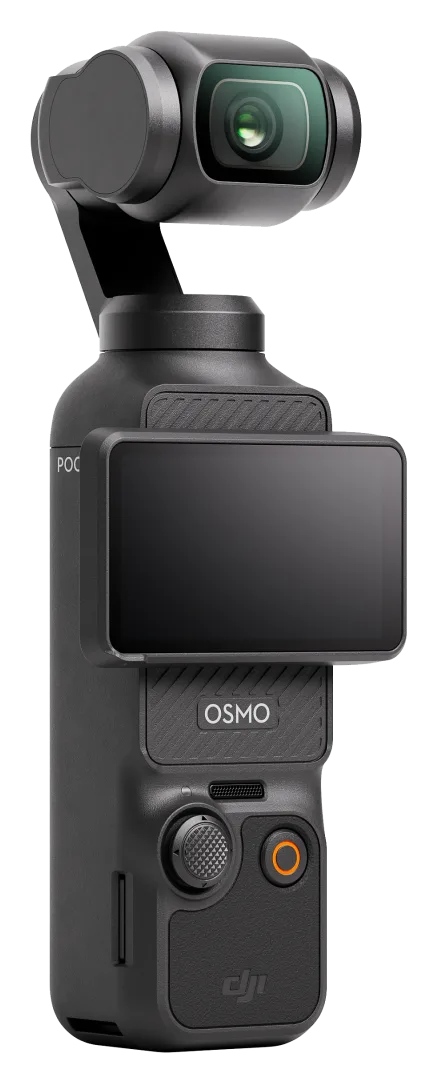
Pocket-sized 3-axis gimbal camera with a 1-inch sensor, 4K video and a 2-inch rotating touchscreen. Made for vlogging and travel.
Great for: Vlogging and talking-head videos · Travel and walk-around footage · Low-light evening shots
Overview
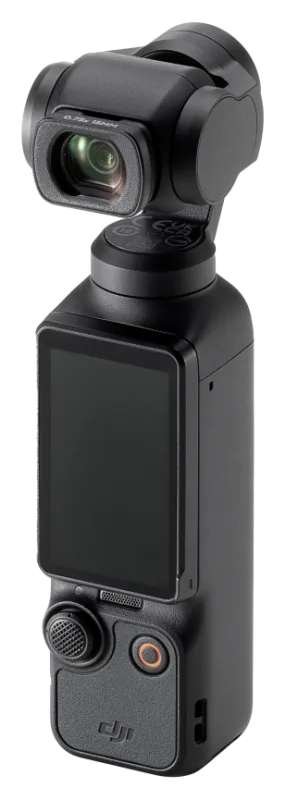
The Osmo Pocket 3 puts a 1-inch CMOS sensor on a mechanical 3-axis gimbal in a handheld body. Rotating the 2-inch touchscreen powers the camera on and switches between horizontal and vertical shooting.[1]
It has no built-in storage, so footage goes on a microSD card. It is not water resistant, so keep it away from rain, splashes and sand.[1]
Key features
-
1-inch CMOS sensor
A 1-inch sensor with a 20 mm equivalent f/2.0 lens.[2]
-
3-axis mechanical gimbal
Pan, tilt and roll stabilization keeps walking shots smooth. The joystick moves the camera, and pressing it twice recenters it.[1]
-
Rotating touchscreen
Turn the 2-inch screen clockwise to power on, and counterclockwise to power off. With Screen Rotate & Capture enabled, rotating the screen also starts shooting.[1]
-
4K and slow motion
4K at up to 60 fps, plus 4K slow motion at 120 fps and 1080p at up to 240 fps.[2]
-
Fast charging
Charges to 80% in about 16 minutes with the DJI 65W charger (sold separately).[2]
-
Direct wireless mic support
Up to two DJI Mic Mini transmitters can connect directly to the camera, without a receiver.[3]
Specifications
Values are the manufacturer's published figures. Battery times are measured by the manufacturer in lab conditions and will be shorter in real use.
| Sensor | 1-inch CMOS[2] |
|---|---|
| Lens | 20 mm equivalent, f/2.0[2] |
| Video | 4K (3840×2160) at 24/25/30/48/50/60 fps[2] |
| Slow motion | 4K at 120 fps; 2.7K at 120 fps; 1080p at 120 or 240 fps[2] |
| Max video bitrate | 130 Mbps[2] |
| Photo | Approx. 9.4 MP (3840×2160)[2] |
| Gimbal | 3-axis mechanical (pan, tilt, roll)[2] |
| Screen | 2.0-inch touchscreen, 700 nits[2] |
| Battery | 1300 mAh; up to 166 min (manufacturer test at 1080p/24fps, screen and Wi-Fi off)[2] |
|---|---|
| Charging time | About 16 min to 80% and 32 min to 100% with the DJI 65W charger (sold separately)[2] |
| Operating temperature | 0 °C to 40 °C[2] |
| Charging temperature | 5 °C to 45 °C[2] |
| Storage | microSD up to 1 TB; no built-in storage[2] |
| Wireless | Wi-Fi 802.11 a/b/g/n/ac; Bluetooth BLE 5.2[2] |
Getting started
-
Insert a microSD card
The Pocket 3 records only to a microSD card rated UHS-I Speed Grade 3. To remove the card, gently push it in so it partially ejects.[1]
-
Power on
Rotate the touchscreen clockwise or press the Shutter/Record button. To power off, rotate the screen counterclockwise or hold the Shutter/Record button for one second.[1]
-
Connect to DJI Mimo
DJI requires activation in DJI Mimo before first use. Turn on Wi-Fi and Bluetooth on your phone, open DJI Mimo, tap to connect to the camera and follow the steps. If the app offers a firmware update, make sure the battery is above 15% first.[1]
-
Charge
Use the included USB-C cable and a USB-C Power Delivery charger on the port at the bottom of the camera. If a handle is attached, charge through the USB-C port on the handle instead.[1]
Before shooting anything important, record a short test clip to confirm everything works.
How-to tutorials
Buttons and joystick
- Shutter/Record: press once to take a photo or start and stop recording; press and hold for one second to power off.
- Joystick: push left or right to pan, up or down to tilt or zoom.
- Joystick: press twice to recenter the gimbal, press three times to flip the camera between facing forward and backward, and press and hold to lock the gimbal.
Source: [1] DJI Osmo Pocket 3 User Manual v1.0
Touchscreen gestures
- Tap the live view to focus and meter on that spot; double-tap a subject to start ActiveTrack.
- Swipe down from the top for the control menu, and up from the bottom for aspect ratio, timer and resolution.
- Swipe right from the left edge to play back your last shot, and left from the right edge for image and audio settings.
Source: [1] DJI Osmo Pocket 3 User Manual v1.0
Copy footage to your phone or computer
- Phone: connect to DJI Mimo, open Playback and download the clips you want.
- Computer: power on the camera, connect it with a USB-C cable and tap Transfer File/OTG Connection. The camera cannot record while transferring.
- Android phones with OTG support can read the files over the included USB-C cable.
- If a transfer is interrupted, reconnect the camera and try again.
Source: [1] DJI Osmo Pocket 3 User Manual v1.0
Choose when rotating the screen powers off
- Swipe down from the top of the screen to open the control menu and tap the settings icon.
- Scroll to Rotate screen to power off.
- Choose Now (power off immediately), 2s (ask whether to keep shooting) or Never (keep shooting after rotating).
Source: [1] DJI Osmo Pocket 3 User Manual v1.0
Pack it away safely
- Power off the camera before storing it.
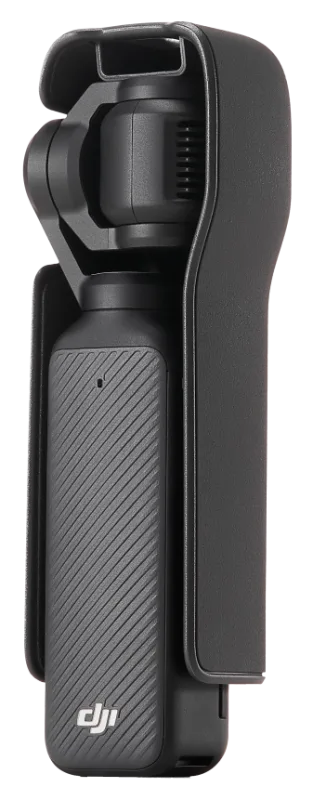
- Put it in the protective cover with the touchscreen facing down, as shown in the manual. The handle can stay attached.
- Placing the camera in the cover the wrong way can damage the gimbal and the screen.
Source: [1] DJI Osmo Pocket 3 User Manual v1.0
Video tutorials
Official tutorial videos published by the manufacturer. Videos open on the manufacturer's video site.
Manuals & downloads
Documents are hosted by the manufacturer and open in a new tab. Always use the latest version.
Troubleshooting
The camera stops recording and feels hot
- The camera stops shooting when it overheats. Let it cool down before continuing.
- Do not cover or hold the ventilation area while recording.
Source: [1] DJI Osmo Pocket 3 User Manual v1.0
The gimbal behaves strangely or will not move freely
- Make sure nothing is blocking the gimbal when you power on.
- Avoid adjusting the axis lock by hand often; it can make the lock malfunction.
- Do not mount the camera on motorcycle or bike handlebars. Strong vibration can damage the camera system and gimbal.
Source: [1] DJI Osmo Pocket 3 User Manual v1.0
The computer does not show the files
- Power the camera on before connecting the cable, then tap Transfer File/OTG Connection on the prompt. Choosing Cancel only charges the device.
- If a transfer stops part-way, reconnect the camera.
Source: [1] DJI Osmo Pocket 3 User Manual v1.0
A firmware update will not start
- Make sure the battery level is above 15%.
- Connect to DJI Mimo and tap the update prompt. The update takes about 2 minutes.
Source: [1] DJI Osmo Pocket 3 User Manual v1.0
Still stuck with a rented unit? Contact JuanderGear.
Care & safe use
Handling[1]
- The gimbal has delicate parts that can be damaged by impact. Handle the camera with care and keep it away from sand and dust.
- The camera is not water resistant. Do not spill liquids on it or use liquid cleaners; wipe it only with a soft, dry cloth.
- Do not point the lens at laser beams, such as at a laser show; they can damage the sensor.
- Slight friction between the screen frame and the body when rotating the screen is normal.
FAQ
Is the Osmo Pocket 3 waterproof?
No. DJI states that it is not water resistant. Keep it away from water and use only a soft, dry cloth to clean it.[1]
Does it have internal storage?
No. All footage is recorded to a microSD card (UHS-I Speed Grade 3, up to 1 TB).[2]
Can I use a wireless microphone with it?
Yes. Up to two DJI Mic Mini transmitters can connect directly to the Osmo Pocket 3 over Bluetooth.[3]
Sources
- DJI Osmo Pocket 3 User Manual v1.0 (opens in a new tab) — DJI. Checked October 23, 2026.
- Osmo Pocket 3 specifications (opens in a new tab) — DJI. Checked October 23, 2026.
- DJI Mic Mini FAQ (opens in a new tab) — DJI. Checked October 23, 2026.
Product names, logos and trademarks belong to their respective owners. JuanderGear is an independent rental service and is not affiliated with or endorsed by DJI, JBL/HARMAN or Microsoft. Guide content is summarised from the manufacturers' public documents; if anything here differs from the official manual, the manual takes precedence.
More product guides
-
 Audio
DJI Mic Mini
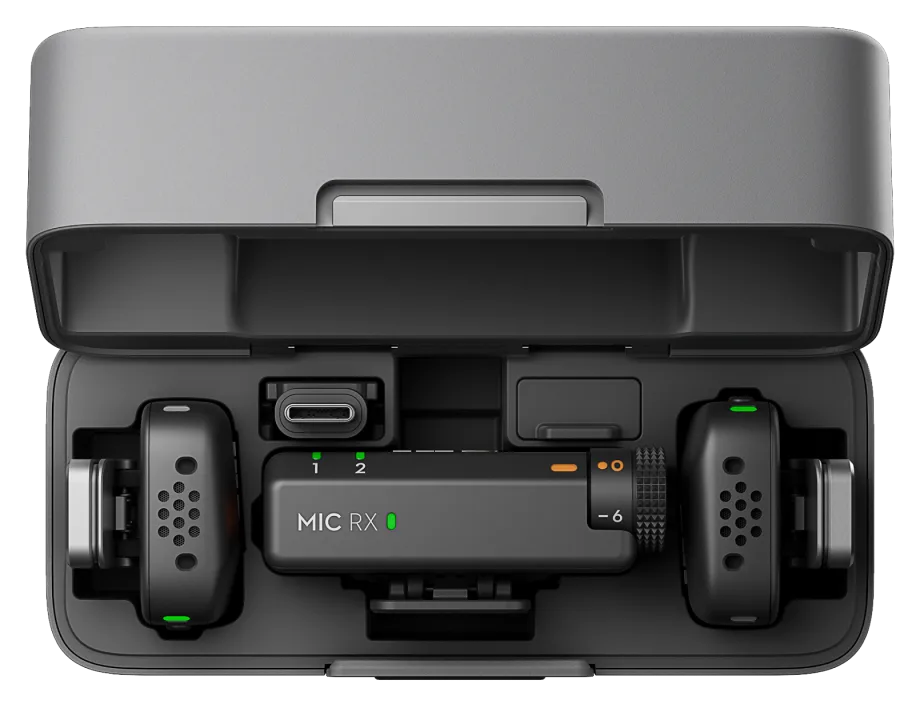
Ultra-light wireless microphone kit: about 10 g per transmitter, up to 11.5 hours per charge, and direct connection to phones, cameras and computers.
-
 Gimbals & stabilizers
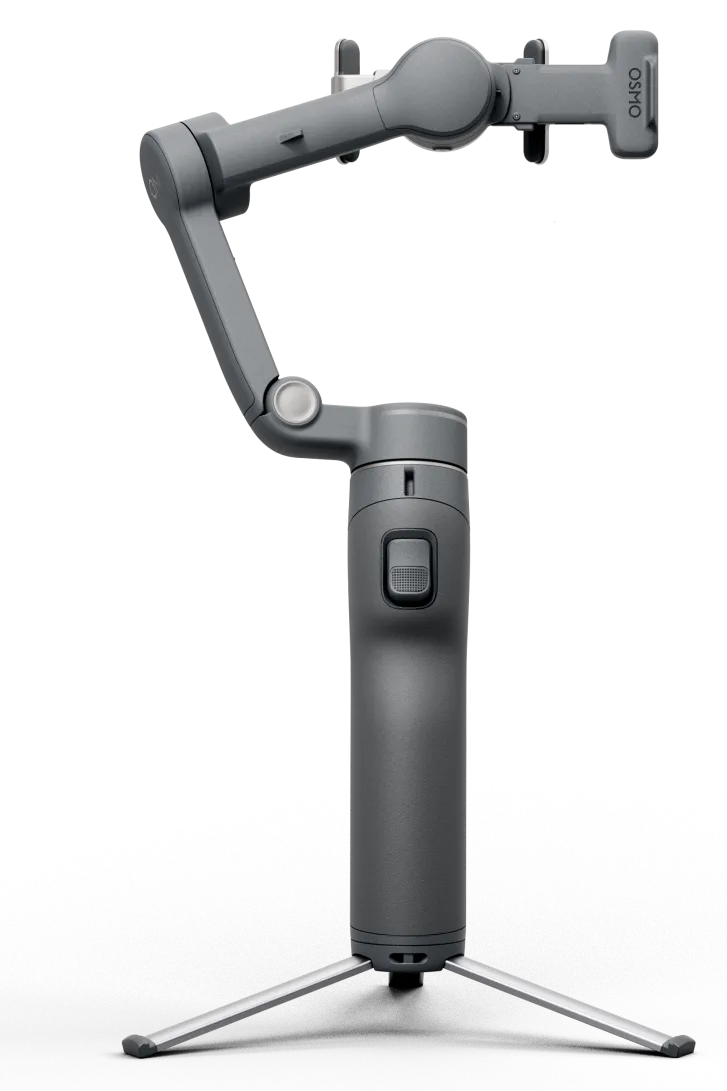
DJI Osmo Mobile 8P
Foldable 3-axis smartphone gimbal with a magnetic phone clamp, a built-in tripod and extension rod, and a detachable Osmo FrameTap touchscreen remote.
-
 Cameras
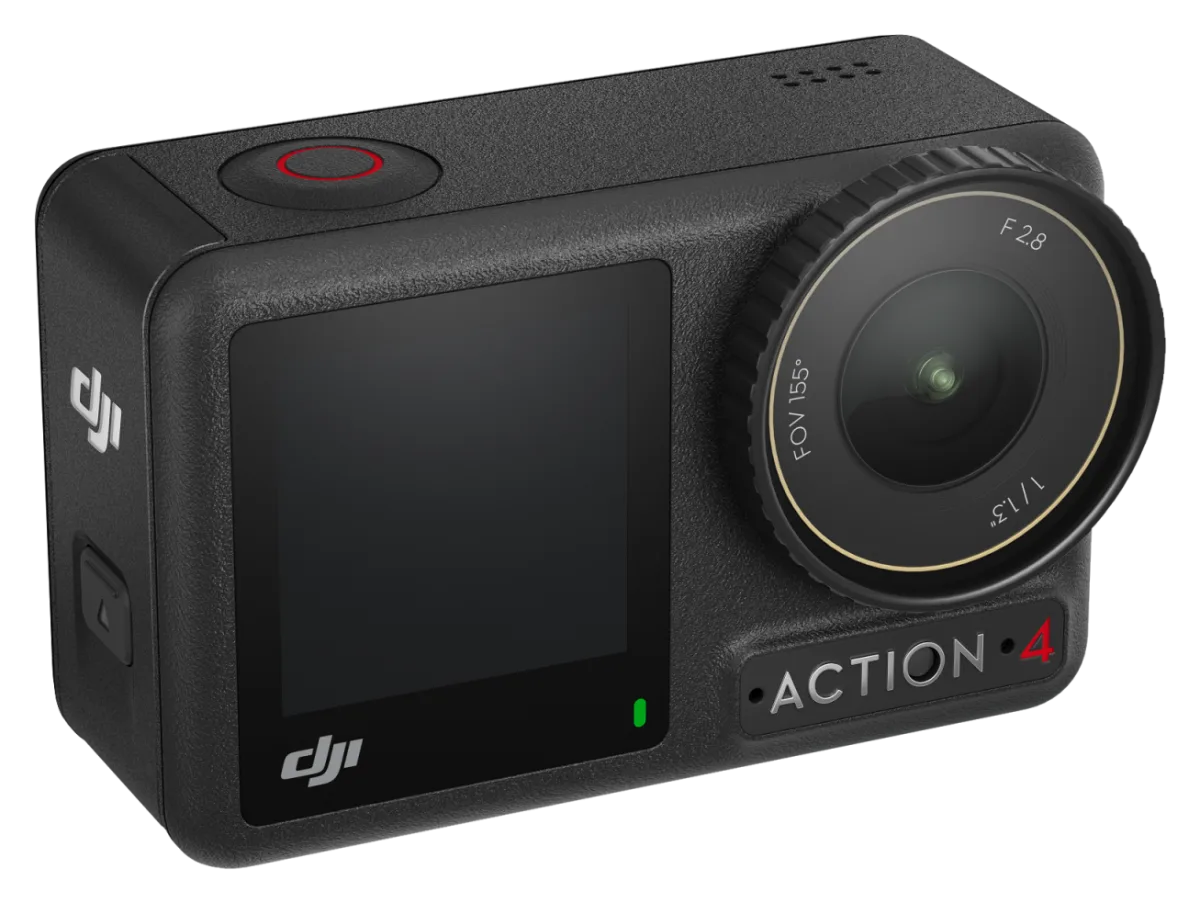
DJI Osmo Action 4
Rugged action camera with a 1/1.3-inch sensor, 4K video at up to 120 fps, two touchscreens and waterproofing to 18 m without a case.
Need help with your rental?
If something is not working as described, or a guide does not cover your question, message the JuanderGear team. For warranty and repairs of devices you own, contact the manufacturer directly.