Product Guide
DJI Osmo Mobile 8P guide
Foldable 3-axis smartphone gimbal with a magnetic phone clamp, a built-in tripod and extension rod, and a detachable Osmo FrameTap touchscreen remote.
Great for: Smooth smartphone video · Solo creators who need subject tracking · Remote framing with the FrameTap screen
Before you start
- The Osmo Mobile 8P is sold in more than one combo, and only some include the Multifunctional Module 2 for tracking in third-party apps. Check with JuanderGear which accessories come with your rental.
- Step-by-step unfolding and power-on diagrams are in DJI's Quick Start Guide, linked under Manuals & downloads.
Overview
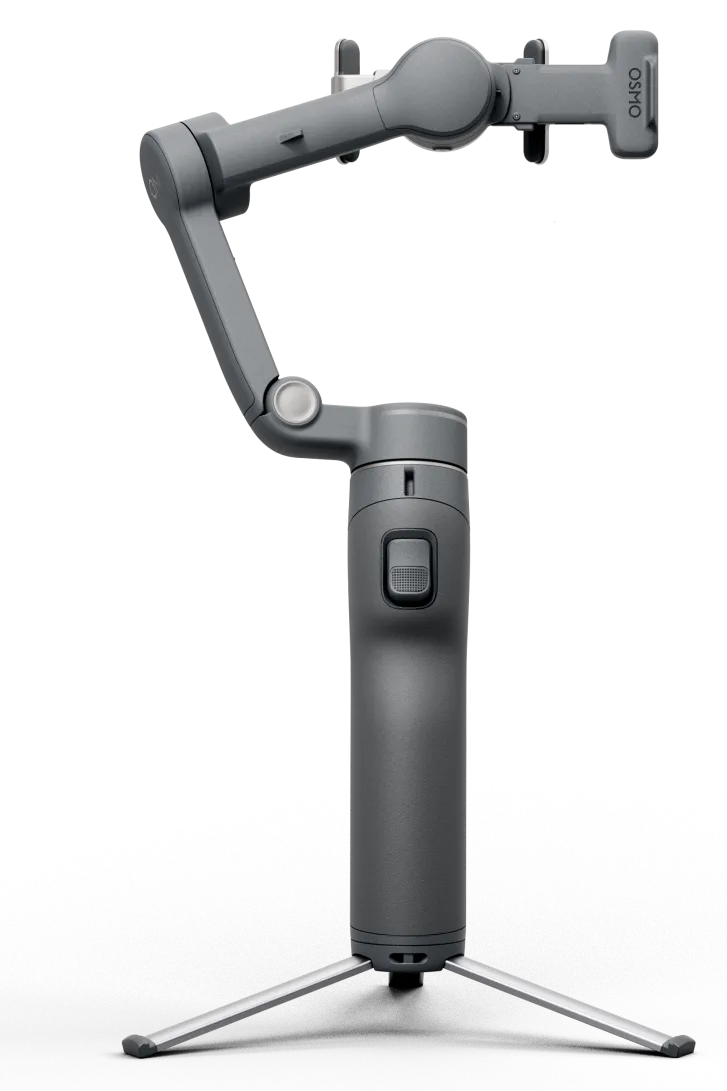
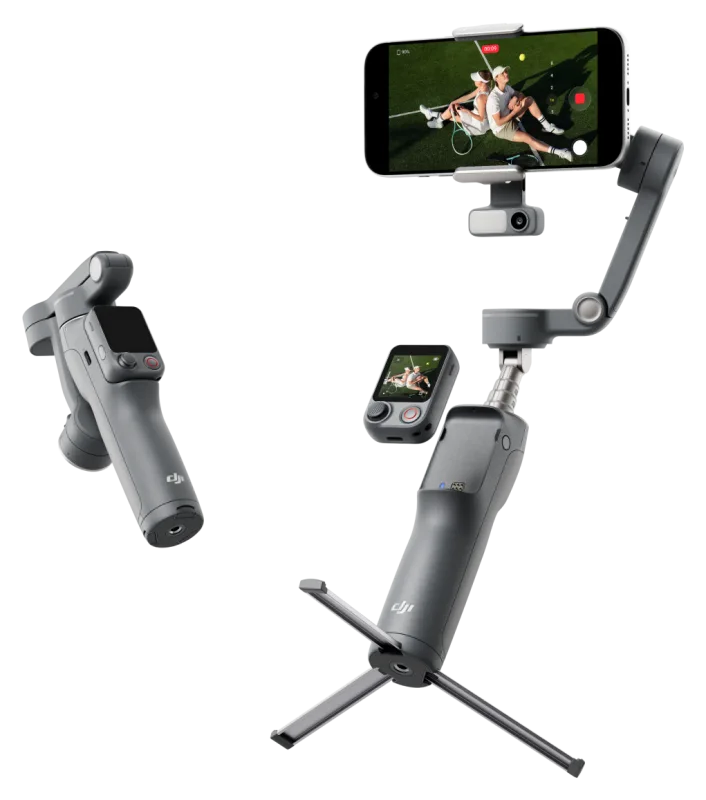
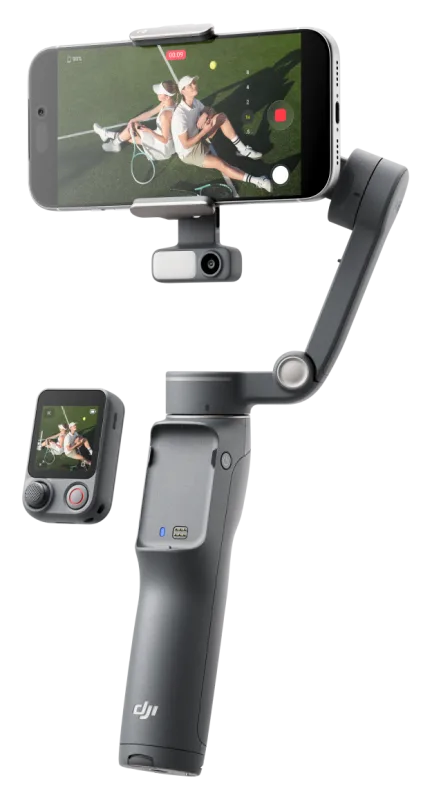
The Osmo Mobile 8P holds your phone on a magnetic clamp and stabilizes it on three axes. A detachable remote, the Osmo FrameTap, has its own 1.4-inch screen, so you can control shooting and check framing from a distance.[1]
It folds down small, has a built-in tripod and a 215 mm extension rod, and can charge your phone while you shoot. It is not waterproof.[1]
Key features
-
Osmo FrameTap remote
Controls shooting from up to 10 m, mirrors your phone screen up to 25 m (manufacturer test conditions) and adjusts gimbal settings on screen.[1]
-
No balancing needed
Clip the magnetic clamp to the center of your phone and attach it. Heavier setups can use counterweights.[1]
-
ActiveTrack in DJI Mimo
ActiveTrack 8.0 in DJI Mimo follows people and pets, keeps composition steady in crowds and can zoom without losing the subject.[1]
-
Tracking without the app
Compatible iPhones can track people in the built-in Camera app through Apple DockKit. Android phones pair by NFC.[1]
-
Built-in tripod and extension rod
Stand it on a stable, level surface, or extend the rod by up to 215 mm for wider selfie framing.[1]
-
Charges your phone
A USB-C output port can power your phone during long shoots.[1]
Specifications
Values are the manufacturer's published figures. Battery times are measured by the manufacturer in lab conditions and will be shorter in real use.
| Unfolded | 291 × 110 × 101 mm[2] |
|---|---|
| Folded | 196 × 105 × 38 mm[2] |
| Weight | About 386 g (with tripod, clamp, module and FrameTap)[2] |
| Phone weight | 170–300 g[2] |
|---|---|
| Phone thickness | 6.9–11 mm (including any case)[2] |
| Phone width | 67–84 mm[2] |
| App | DJI Mimo (Android 9 or later, iOS 15 or later)[1] |
Getting started
-
Charge the gimbal
Charge through the USB-C charging port on the handle using the included power cable. The battery is built in and cannot be swapped, but you can charge the gimbal while using it.[1]
-
Fit the magnetic phone clamp
Attach the clamp to the center of your phone. With a case, the phone must be 11 mm thick or less.[1]
-
Attach the phone
Snap the phone and clamp onto the gimbal's magnetic mount, lined up with the magnetic area. No balancing is needed.[1]
-
Connect your phone
On Android, tap the phone on the NFC area to pair and open DJI Mimo automatically. On iPhone, pair through Apple DockKit after unlocking. After the first pairing, the gimbal reconnects automatically. You can also connect from inside DJI Mimo.[1]
-
Update firmware when prompted
DJI Mimo shows a notification when an update is available. Keep the FrameTap attached, keep Mimo open in the foreground and keep your phone's Wi-Fi on during the update.[1]
How-to tutorials
Mirror your phone to the FrameTap
- On the FrameTap main screen, swipe left.
- Choose iOS or Android.
- Follow the on-screen prompts. You can then frame shots on the FrameTap from up to 25 m away (manufacturer test conditions).
Source: [1] Osmo Mobile 8P FAQ
Track people with the iPhone Camera app (DockKit)
- Needs iPhone 12 or later on iOS 18.5 or later. The iPhone SE (3rd generation) and iPhone 16e are not supported.
- Pair once by NFC. The phone then reconnects automatically when you turn on Bluetooth and mount it.
- A solid green status light means the gimbal is ready and will track when a person enters the frame. A slowly flashing green light means it is tracking.
- Tracking does not work while a Multifunctional Module is attached.
Source: [1] Osmo Mobile 8P FAQ
Choose between Timelapse, Motionlapse and Hyperlapse
- Timelapse: for a fixed setup on a tripod.
- Motionlapse: a moving timelapse between preset positions.
- Hyperlapse: for walking while holding the gimbal.
Source: [1] Osmo Mobile 8P FAQ
Get a bigger tilt angle
- In PTF mode, hold the gimbal in the Side Grip position and push the joystick up or down.
- You can also extend the rod and adjust the pan motor angle.
Source: [1] Osmo Mobile 8P FAQ
When to use the built-in tripod
- Use it only on stable, level surfaces with no wind.
- For uneven ground or windy conditions, DJI suggests the DJI OM Grip Tripod (sold separately).
Source: [1] Osmo Mobile 8P FAQ
Video tutorials
Official tutorial videos published by the manufacturer. Videos open on the manufacturer's video site.
Watch the official Osmo Mobile 8P tutorials on dji.com → (opens in a new tab)
Manuals & downloads
Documents are hosted by the manufacturer and open in a new tab. Always use the latest version.
- PDF Osmo Mobile 8P User Manual (opens in a new tab)
- PDF Quick Start Guide (Standard) (opens in a new tab)
- PDF Quick Start Guide (Advanced Tracking Combo) (opens in a new tab)
- PDF Safety Guidelines (opens in a new tab)
- PDF Firmware Release Notes (opens in a new tab)
- Page All downloads (opens in a new tab)
Troubleshooting
The camera view is tilted after power-on
- Make sure the clamp is lined up with the gimbal's magnetic area and centered on the phone.
- If it is still tilted, run auto-calibration and horizontal adjustment in DJI Mimo.
Source: [1] Osmo Mobile 8P FAQ
Part of the gimbal shows up in wide-angle shots
- Move the clamp further from the phone's camera until the gimbal is out of frame.
Source: [1] Osmo Mobile 8P FAQ
Connected by Bluetooth but the gimbal does not respond
- Restart the gimbal and DJI Mimo.
- Forget the gimbal in your phone's Bluetooth settings and turn Bluetooth off and on.
- If it still does not work, connect from inside DJI Mimo instead of the phone's Bluetooth settings.
Source: [1] Osmo Mobile 8P FAQ
Switching to a different phone
- Disconnect the first phone and turn off its Bluetooth.
- Reset Bluetooth from the FrameTap, or hold the shutter button and the joystick together for two seconds to clear the pairing.
Source: [1] Osmo Mobile 8P FAQ
DockKit tracking will not start on iPhone
- Check that "OM8P-XXXXXX-Dock" is paired in Bluetooth settings, and that your iPhone model and iOS version are supported.
- Make sure the gimbal is not connected to another phone, that the status light is green and that no module is attached.
- Use a camera app. If it still fails, restart the gimbal, try NFC pairing again or reset Bluetooth.
Source: [1] Osmo Mobile 8P FAQ
Still stuck with a rented unit? Contact JuanderGear.
Care & safe use
Safe use[1]
- Neither the gimbal nor the FrameTap is waterproof. Keep them away from rain and splashes.
- The magnetic clamp is strong. Keep it away from bank cards, pacemakers, memory and hard drives. Your phone may ask you to recalibrate its compass.
- Keep the phone, case and any add-on lens under about 300 g, and avoid oversized lenses.
- Do not use the 50 cm power cable to charge your phone while shooting. Use the 15 cm phone cable instead.
FAQ
Do I need to balance my phone on the Osmo Mobile 8P?
No. Center the magnetic clamp on your phone and attach it. If you add heavy camera modules or accessories, fit counterweights to the roll-axis mounting hole.[1]
Will it fit my phone with a case on?
Yes, as long as the phone and case together are 11 mm thick or less, 67–84 mm wide and 170–300 g. DJI also publishes a compatibility list.[1]
Can I use it in the rain?
No. Neither the gimbal nor the FrameTap is waterproof.[1]
Sources
- Osmo Mobile 8P FAQ (opens in a new tab) — DJI. Checked October 23, 2026.
- Osmo Mobile 8P specifications (opens in a new tab) — DJI. Checked October 23, 2026.
Product names, logos and trademarks belong to their respective owners. JuanderGear is an independent rental service and is not affiliated with or endorsed by DJI, JBL/HARMAN or Microsoft. Guide content is summarised from the manufacturers' public documents; if anything here differs from the official manual, the manual takes precedence.
More product guides
-
 Cameras
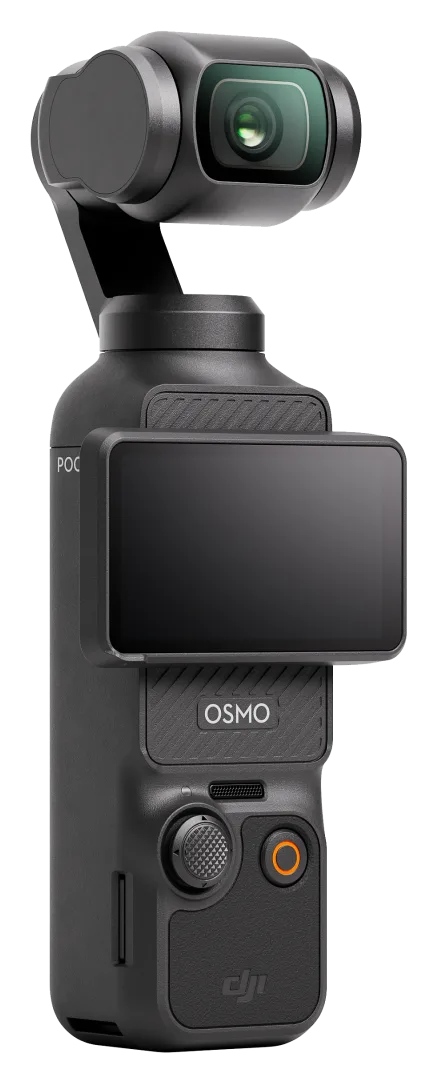
DJI Osmo Pocket 3
Pocket-sized 3-axis gimbal camera with a 1-inch sensor, 4K video and a 2-inch rotating touchscreen. Made for vlogging and travel.
-
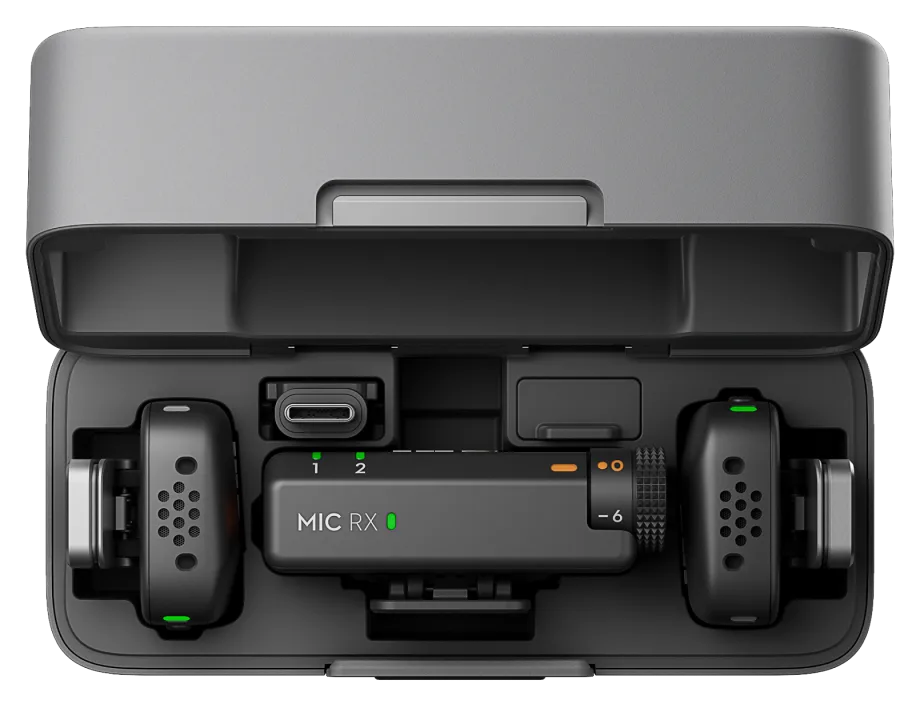 Audio
DJI Mic Mini
Ultra-light wireless microphone kit: about 10 g per transmitter, up to 11.5 hours per charge, and direct connection to phones, cameras and computers.
-
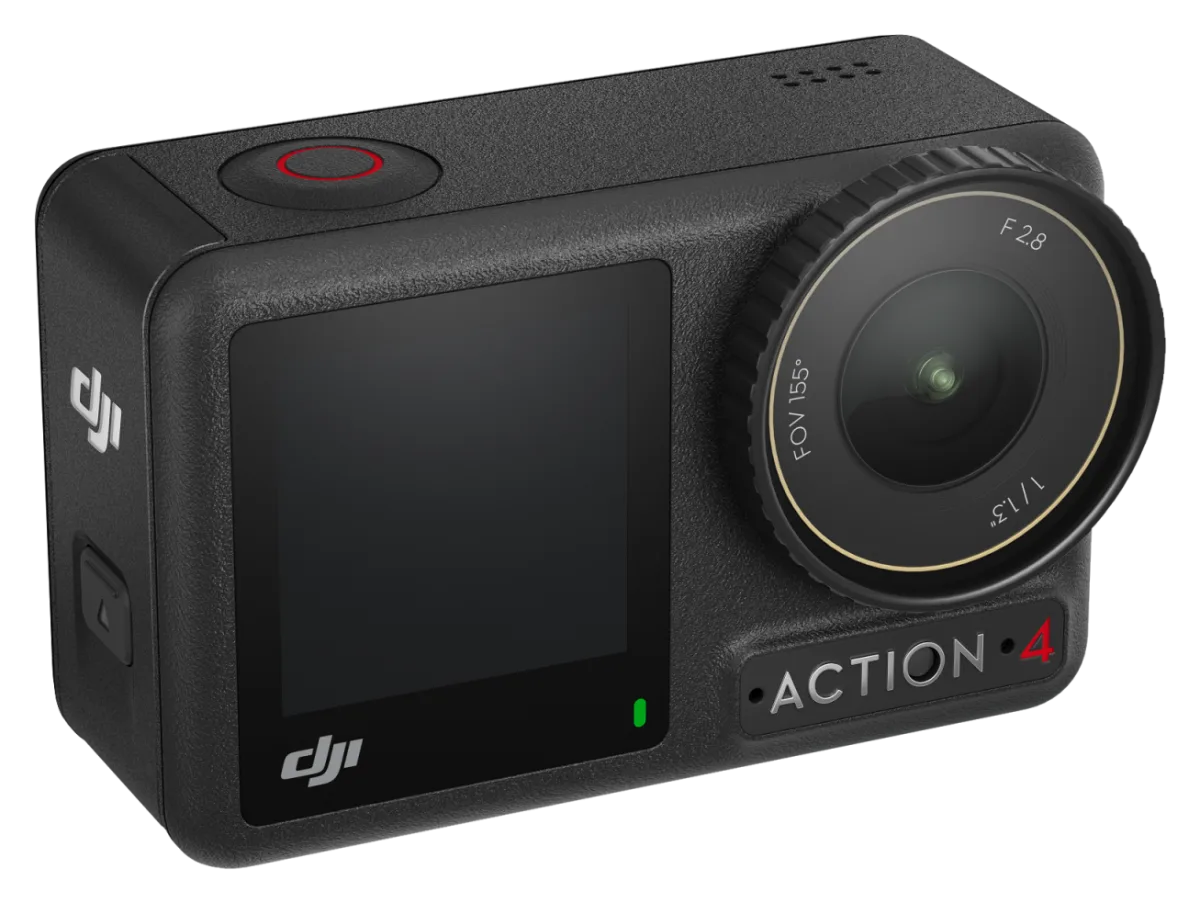 Cameras
DJI Osmo Action 4
Rugged action camera with a 1/1.3-inch sensor, 4K video at up to 120 fps, two touchscreens and waterproofing to 18 m without a case.
Need help with your rental?
If something is not working as described, or a guide does not cover your question, message the JuanderGear team. For warranty and repairs of devices you own, contact the manufacturer directly.